Welcome to WordPress. This is your first post. Edit or delete it, then start writing!
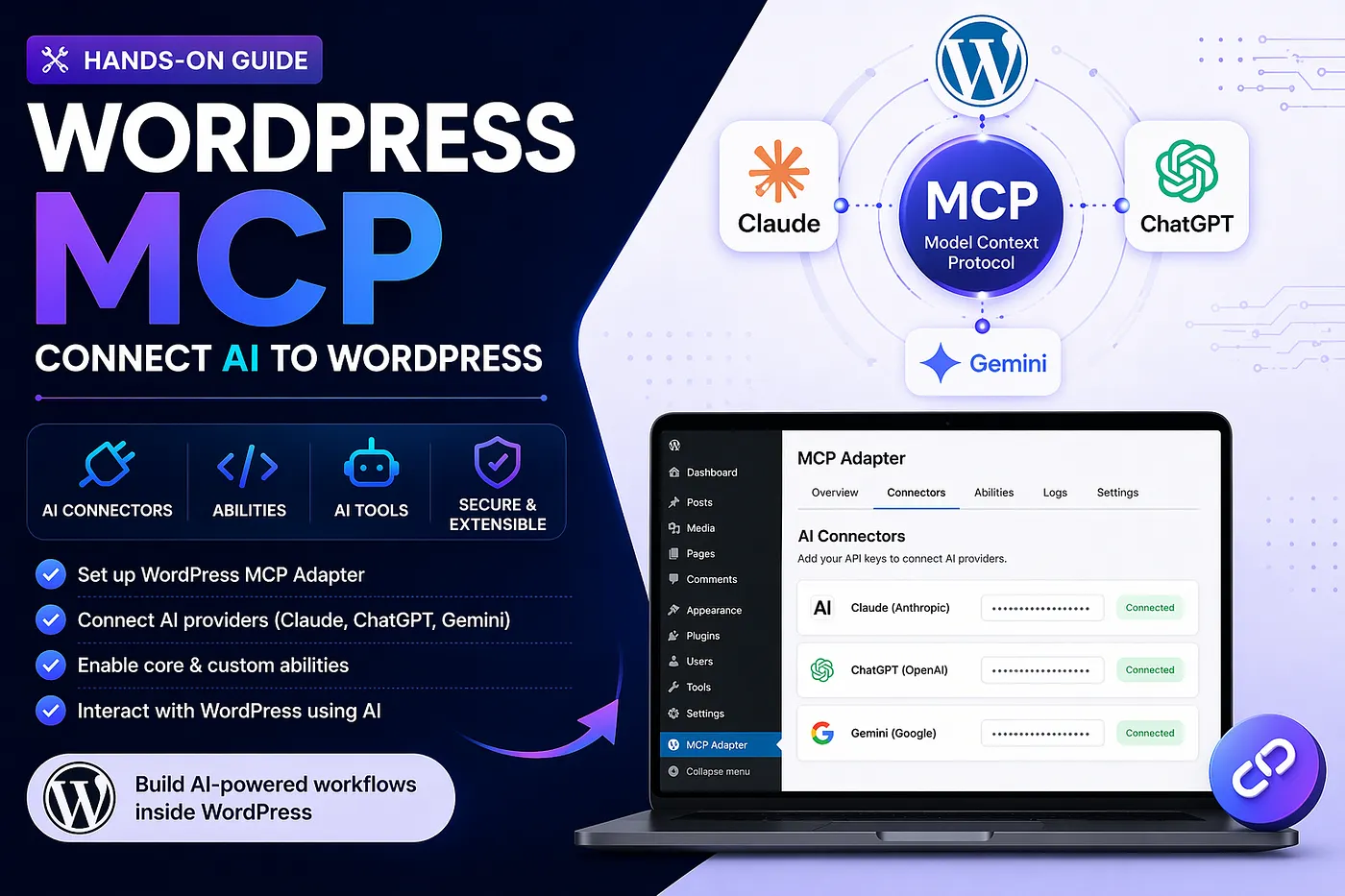
What if you could ask an AI to fetch posts, update content, or analyze your WordPress site — without writing custom APIs?
That’s exactly what WordPress MCP enables.
In this hands-on guide, I’ll walk you through setting up WordPress MCP, connecting it to AI tools, and sharing what actually works (and what doesn’t yet).
🚀 Why WordPress MCP is a Big Deal
- No custom integrations needed
- Standardized AI communication layer
- Turns WordPress into an AI-ready system
This matches how MCP acts as a “universal translator” between WP and AI tools
🤖 What is WordPress MCP?
WordPress MCP (Model Context Protocol) is an experimental project that allows AI tools to interact with your WordPress site in a structured way.
Instead of copy-pasting prompts or manually integrating APIs, MCP enables:
- Direct communication between AI tools and WordPress
- Smarter automation (content, SEO, dev workflows)
- AI-assisted development inside tools like Cursor or Claude
👉 Think of it as a bridge between WordPress and AI.
⚙️ Prerequisites
Before getting started, make sure you have:
- WordPress 7.1 (beta)
- WordPress Beta Tester plugin installed
API keys for(ANY ONE) :
- Anthropic (Claude)
- OpenAI (ChatGPT)
- Google (Gemini)
Basic knowledge of:
- Composer
- Node.js / npm
📦 Step 1: Install WordPress 7.1 Beta
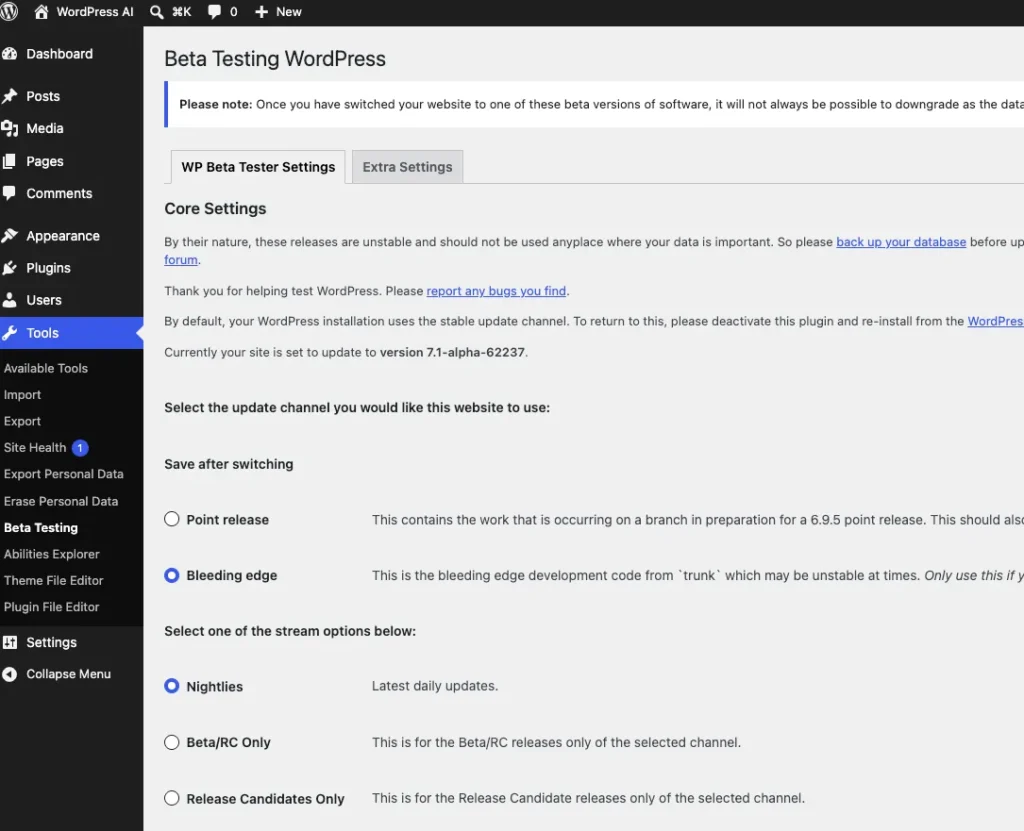
Since MCP is not supported in stable WordPress yet:
- Install the WordPress Beta Tester plugin
- Enable beta updates as shown in image.
- Update your site to WordPress 7.1
🧩 Step 2: Clone the WordPress MCP Plugin
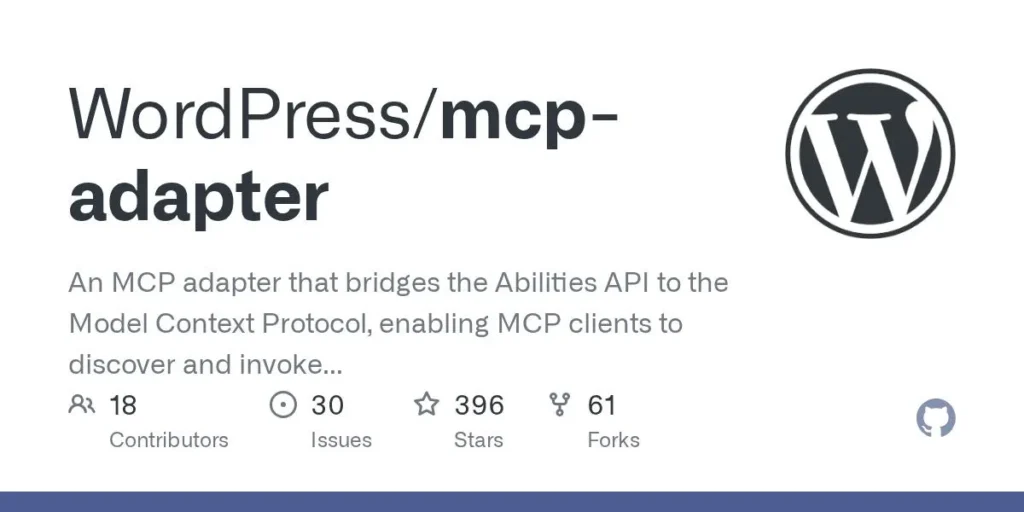
The plugin is currently in development:
👉 https://github.com/wordpress/mcp-adapter
Clone it into your plugins directory:
git clone https://github.com/wordpress/mcp-adapter
cd mcp-adapter
🛠️ Step 3: Install Dependencies
Navigate into the plugin folder and run:
composer install- Activate the plugin

🧠 Step 4: Connect with AI Tools
You can now connect MCP with tools like:
- Claude
- Cursor
- Other MCP-compatible clients
This enables:
- AI interacting with your WP content
- AI-assisted development workflows
- Automation across your site
Note: I have used applications password as authentication.
For Cursor
Add below code in mcp.json file. Replace your details.
{
 "mcpServers": {
   "wordpress-http-default": {
  "command": "npx",
  "args": [
    "-y",
    "@automattic/mcp-wordpress-remote@latest"
  ],
  "env": {
    "WP_API_URL": "http://wordpress-ai.local/wp-json/mcp/mcp-adapter-default-server",
    "LOG_FILE": "/Users/your-name/Desktop/logs/mcp-adapter.log",
    "WP_API_USERNAME": "admin",
    "WP_API_PASSWORD": "mxW9 CAmp JM0F vzzQ zU54 lH9e"
  }
   }
 }
}
Now in Tools & MCPs you can see enabled tools and prompts.

For Claude
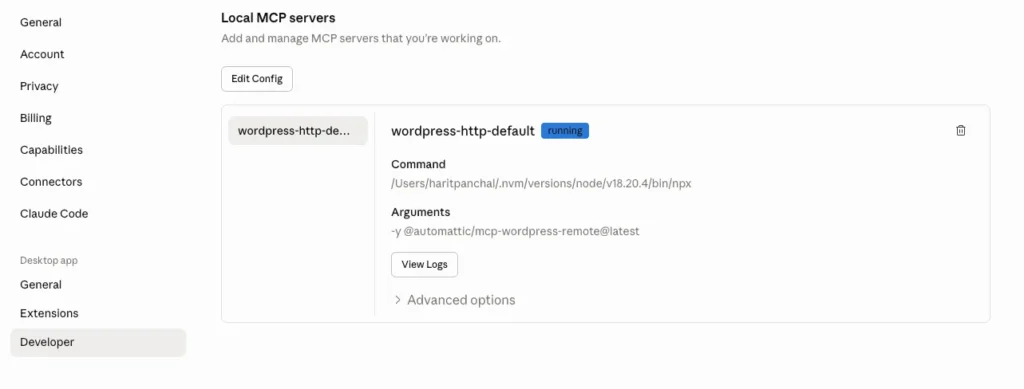
Add the same code in claude_desktop_config.json file and restart Claude desktop and you will see wordpress-http-default server running.
🔓Step 5: Enabling Core Abilities for MCP Access
Next, configure abilities according to your needs — you can leverage existing core abilities or build custom ones to extend functionality.
add_filter( 'wp_register_ability_args', 'myplugin_enable_core_abilities_mcp_access', 10, 2 );

function myplugin_enable_core_abilities_mcp_access( array $args, string $ability_name ) {
    $core_abilities = array(
        'core/get-site-info',
        'core/get-user-info',
        'core/get-environment-info',
        'core/get-post',
    );
    if ( in_array( $ability_name, $core_abilities, true ) ) {
        if ( ! isset( $args['meta'] ) || ! is_array( $args['meta'] ) ) {
            $args['meta'] = array();
        }
        if ( ! isset( $args['meta']['mcp'] ) || ! is_array( $args['meta']['mcp'] ) ) {
            $args['meta']['mcp'] = array();
        }
        $args['meta']['mcp']['public'] = true;
    }

    return $args;
}
👉 MCP only exposes abilities that are marked public
This is critical and backed by docs:
Abilities need meta.mcp.public = true to be accessible
By default, abilities are NOT accessible via MCP — you must explicitly expose them.
⚠️ Important Note
Be careful with what you expose:
- Don’t blindly enable all abilities
- Only allow what’s necessary
- Treat this like an API permission layer
Now we can start writing prompts.
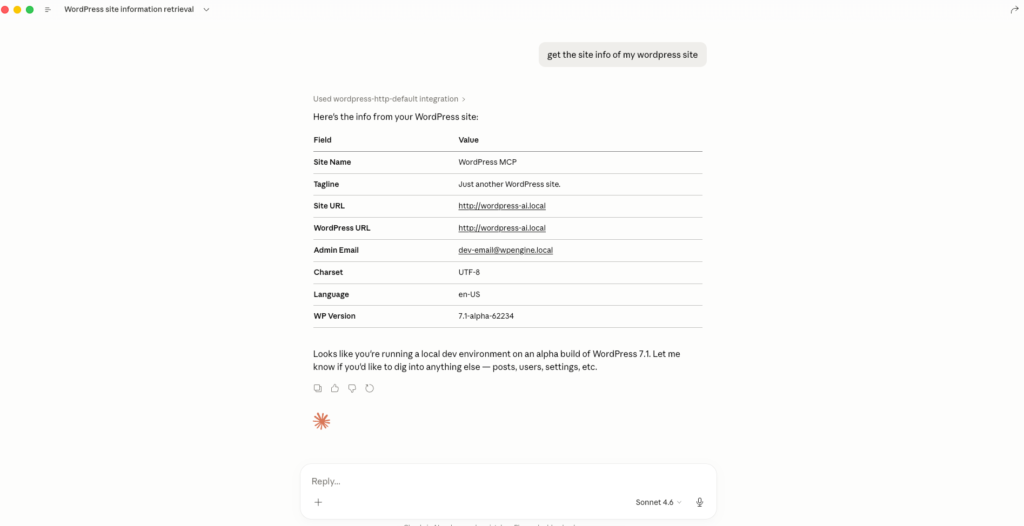
🚀 Why This Changes WordPress Development
- No need to build custom REST integrations
- AI can directly execute actions in WordPress
- Standard interface across all AI tools
💡 What You Can Build with MCP
- AI-generated blog posts inside WP
- Automated SEO/meta updates
- AI-powered admin assistants
- Cross-tool workflows (WP + external APIs)
🧾 Conclusion
WordPress MCP is still in its early days, but it already gives a glimpse into what the future of WordPress development could look like — AI working alongside your site, not outside it.
Setting it up today requires a bit of effort — beta versions, manual installs, and explicitly enabling abilities — but that’s expected at this stage. Once configured, though, you start to see the real potential: AI tools interacting directly with your WordPress data, assisting in development, and opening the door to smarter automation.
The most powerful takeaway is control. With abilities, you decide exactly what AI can access and do, making MCP not just flexible, but also safe when used correctly.
For now, this is best suited for:
- Developers exploring AI integrations
- Early adopters experimenting with new workflows
If you’re running production sites, it’s worth keeping an eye on — but not deploying just yet.
👉 Overall, MCP has the potential to become the standard interface between WordPress and AI.